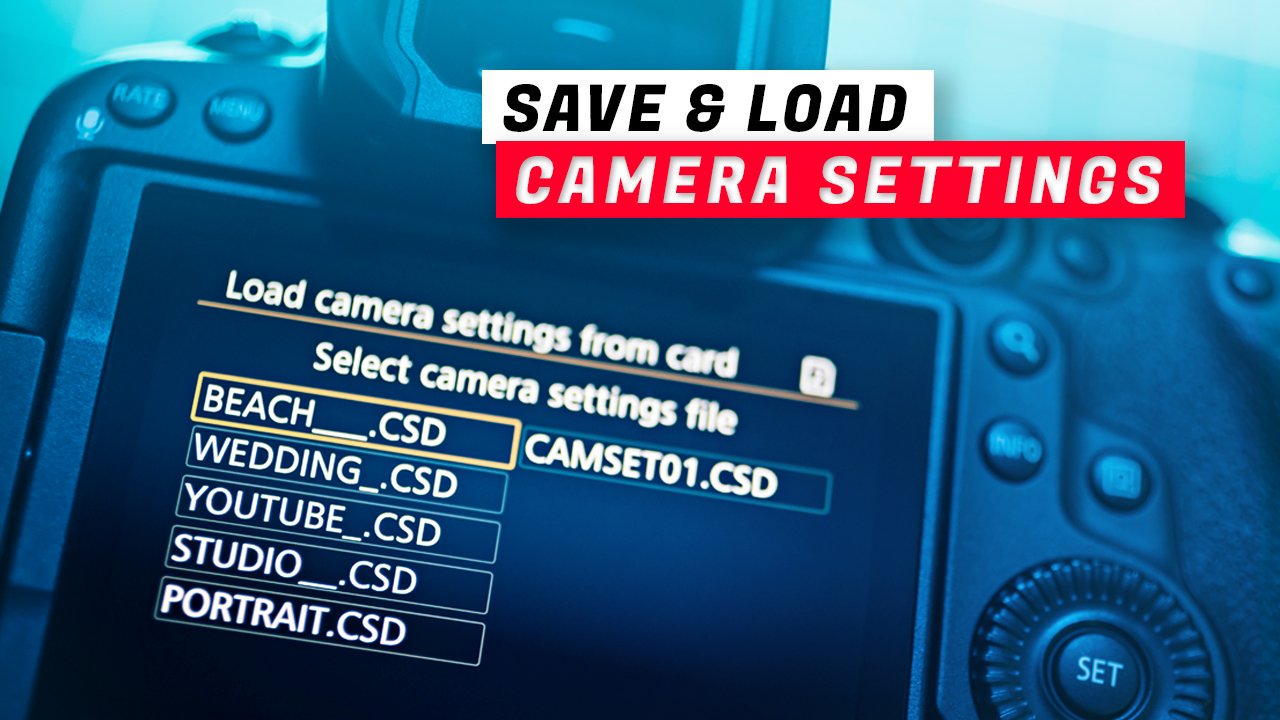
If you use a Canon EOS R5, R5 Mark II, R5C, R3, or R1 for professional photography or video work, one of the most powerful, and underrated, features is the ability to save and load your complete camera settings to an SD card. This lets you create reusable presets for weddings, portraits, landscapes, slow-motion video, and more, and instantly reload them anytime. It’s also a lifesaver if you ever need to switch cameras or use a loaner body. As of the time of writing this blog post this feature is only available on R5 series cameras and above.
In this guide, I’ll show you exactly how to save and load camera settings from your memory card, why this feature matters, and how to use it like a pro.
📌 Table of Contents
*If new information comes up i’ll update the blog post.
Why Save Camera Settings to an SD Card?
At first, this feature might seem unnecessary. After all, most photographers work mainly with, shutter speed, aperture and ISO. So why bother saving presets to a card? Here’s why it matters.
Real-World Example: Wedding vs Creative Shooting
Let’s say you shoot weddings professionally.
For weddings, you might want:
Minimum shutter speed: 1/125s
Maximum ISO: 3200
Specific autofocus settings
Controlled exposure limits
Consistent color profiles
These are your “safe” professional settings.
But when you’re doing personal or creative work, you might want:
Long exposures (1s, 30s, etc.)
High ISO experimentation
Manual focus
Different picture styles
Switching between these setups manually every time is time consuming, and you run the risk of forgetting something.
Saving your settings to a card means:
✅ No second-guessing
✅ No forgotten menu changes
✅ Total peace of mind
Just load your preset and start shooting. No need to worry if you forgot something.
What Gets Saved When You Use This Function?
When you save your camera settings to a card, Canon stores almost everything, including:
Exposure modes
ISO limits
Shutter speed settings
Autofocus configuration
Drive modes
White balance
Custom functions
Button assignments
Picture profiles
Video settings
In other words, it’s a full camera snapshot. When you reload it, your camera returns to the exact configuration you saved.
How to Save Camera Settings to an SD Card
Follow these steps on your Canon R5-series camera. The menu option might be in a different place on different models but the steps should be the same.
Step 1: Open the Menu
Put the SD card in your camera and press the MENU button.
Step 2: Go to the Yellow Setup Tab
Navigate to:
Yellow Tab → Page 5 of 6
(Exact page may vary slightly by model.)
Step 3: Select “Save/Load Cam Settings on Card”
Look for:
Save/Load Cam Settings on Card
Tap or select it.
Step 4: Choose “Save to Card”
Select:
Save to Card
Press SET / OK.
Your camera will now save your current configuration to the memory card.
How to Rename Your Saved Preset
By default, Canon gives your preset a generic name like:
CAMSET01.CSDNot very helpful.
To Rename It:
When saving, press the INFO button
Select Rename
Enter your custom name
Press OK
Important Limitation
👉 You can choose any name you want as long as it’s exactly 8 characters long. Yes, it’s ridiculous in 2025, but that’s the system.
Example names:
WED_2024
VIDEOLOG
STREET01
LANDSCAP
WEDDING_
If your name is shorter, use underscores.
How to Load Camera Settings From a Card
When you want to restore your preset:
Step 1: Open Menu
Go back to:
Save/Load Cam Settings on Card
Step 2: Select “Load From Card”
Choose:
Load From Card
Step 3: Pick Your Preset
Select the saved file.
Step 4: Confirm
Press SET → OK
Your camera will instantly switch to that configuration and override any settings you currently have set on the camera.
Registering Card Presets to C1, C2, and C3 (Pro Tip)
After loading a preset, I strongly recommend saving it to a custom mode.
Why?
If you accidentally change settings later, you can instantly reset them.
How to Do It
Load your preset from card
Go to Menu → Custom Shooting Modes
Register Current Settings
Assign to C1, C2, or C3
Now you have:
Card backup
In-camera backup
Best of both worlds. This is especially handy if you are shooting live events like weddings. Lighting changes things are dynamic and you may need to change your settings on the fly. If you save your base settings to C1, C2 or C3 than you can always go back to your base setting without having to pop the SD card with your saved settings on it back into the camera.
🎯 Also keep in mind that there are 6 custom settings you can save on the R5. You have C1, C2 and C3 in photo mode and again you have another C1, C2, and C3 in video mode. So when you’re saving your settings make sure you are in the right mode.
Backup Tips and Important Warnings
1. Formatting Deletes Presets
If you format your card, your saved settings are deleted off the card. I strongly recommend picking up an old 2 gig card or something you don’t use and saving your presets to that card and NOT saving them in the card you use to shoot your work on. However, that being said you can save your setting to a card and still use that card for shooting photos or videos with if needed.
2. Copy Presets to Your Computer
These are simple files and don’t take up too much space. You’ll have no problem storing a backup of your settings on your computer, cloud or phone. If you take the time to hone in your presets than it’s worth taking the time to back them up.
3. Compatibility Warning
It’s unclear if presets work between different R5 generations.
Example:
R5 → R5 Mark II
R5 Mark II → R5
I personally avoided testing this on on my camera because well I have a business to run and can’t afford the down time if importing presets from the wrong model messes up my camera. At the time of writing this post I wasn’t able to find any official info on this. However if I learn something I’ll update this post.
Limitations and My Thoughts on Canon’s System
This feature is great, but it’s still limited. Canon really needs to step up their game. Perhaps they aren’t aware that we have the technology to make cameras better. Memory is cheap. Why are we limited to having only 8 characters for naming saved files????? And why are there only slots for 3 custom modes??? There should be 10 custom modes that we can save internally in camera. We should also be able to import our own luts or film simulations or have some sort of editable in camera profiles that are far better than the outdated Picture Styles Canon offers. Canon needs to consider larger internal storage in their cameras. Other brands are already doing this and Canon needs to catch up.
Final Thoughts
Being able to save and load camera settings from an SD card is one of the most underrated tools on Canon’s professional mirrorless cameras.
It helps you:
✅ Work faster
✅ Stay consistent
✅ Avoid mistakes
✅ Switch cameras easily
✅ Stay focused on creativity
If you shoot professionally, especially weddings, events, or video, this feature is absolutely worth mastering. Once you start using it, you’ll wonder how you ever worked without it. Thanks for reading the post and don’t forget to subscribe to the YouTube channel for more helpful tips, tricks and camera talk.
If you want to learn how to upgrade your R5’s firmware I have a video here.
This video was shot entirely with the DJI Pocket 3
🚀 EQUIPMENT USED TO MAKE THIS VIDEO
Canon EOS R5 - https://amzn.to/3snWNve
Canon EOS R5 Mark II - https://amzn.to/46UH9NX
⭐DJI Osmo Pocket 3 - https://amzn.to/3W1bas7
DJI Lavalier Mic - https://amzn.to/4guhHm1
Zhiyun Molus X60 - https://amzn.to/3TJo4JK
Zhuyun Molus B500 - https://amzn.to/3ynuk1w
Sennheiser AVX MKE2 LAV - https://amzn.to/3x6VtTk